
Start ComfyUI
Run ComfyUI with the workflows and custom nodes DreamForge uses.
Set up the Mac workspace for local ComfyUI, library storage, workspaces, folder cleanup, references, edits, and gallery exports.
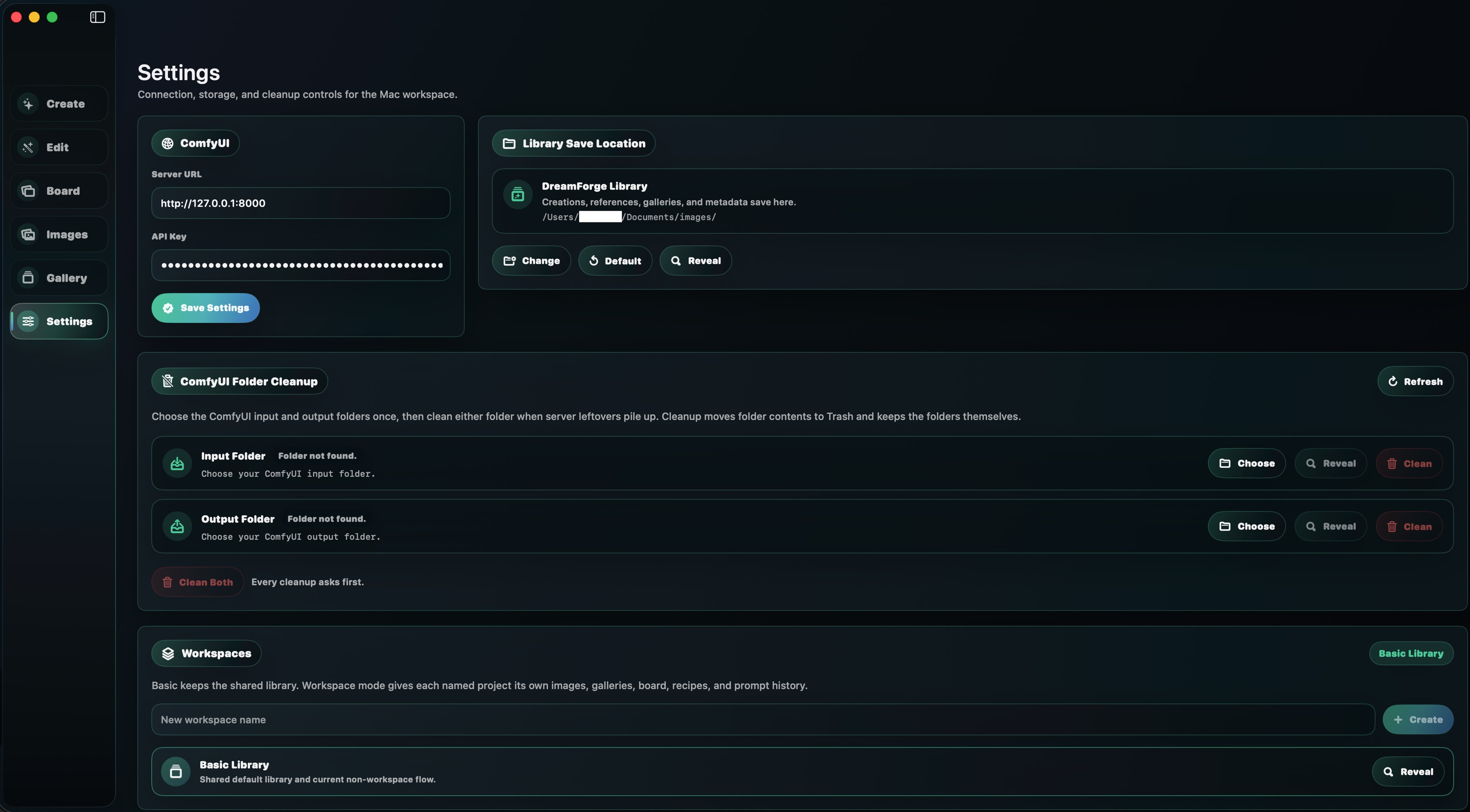
The Mac version assumes your ComfyUI server is reachable from the same Mac or from another machine you control.
Run ComfyUI with the workflows and custom nodes DreamForge uses.
Use http://127.0.0.1:8000 for a server running on the same Mac.
Enter the Comfy account or provider key used by the partner-node workflows.
Pick where DreamForge saves creations, references, galleries, and metadata.
Use Basic Library or create named workspaces for separate projects.
The Mac Settings page groups ComfyUI connection, API key, library save location, cleanup controls, and workspaces so the desktop app can keep long projects tidy.
http://127.0.0.1:8000
If ComfyUI runs on another machine, use that machine's reachable network URL
instead of 127.0.0.1.
Choose the folder where DreamForge stores creations, references, galleries, and metadata.
Use Basic Library for one shared flow, or create named workspaces for separate projects.
Organize Identity, Pose, Outfit, Lighting, Background, Style, and other board sections.
Run upscales, skin enhancement, and background removal without replacing originals.
Group generated images for export-ready sets without duplicating the underlying files.
Choose input and output folders once, then clean leftovers to Trash when needed.
Most Mac issues come down to server reachability, missing provider keys, library permissions, workflow errors, or cleanup folders that have not been selected.
http://127.0.0.1:8000 only when ComfyUI is on the same Mac.The iPhone and iPad version has its own setup flow for Wi-Fi, Tailscale, Photos, camera capture, and Wi-Fi Import. Open the iPhone and iPad guide.